When you login to your blogger dashboard, you'll see a list of all your blogs under your login.
To get started, I'll use a blog I began only as a sample to give new bloggers a start on setting up a blog. It uses an old template, and today we'll convert it from the old style blogger template to one of the new ones that you can "redesign" in the blogger Template Designer. Oh don't worry - it's really not difficult.
First thing to do is select the blog you want to convert and click the "Design" link for that blog from your dashboard. (If you don't see "Design" in your list, then look for "layout" and click that instead).

When your page loads you'll see your page layouts for your current template. Look at the top and you'll see the link for the template designer. When you click that link you'll get the template designer page, which shows your current blog design in the bottom frame, and the template designer in the top.

If you try to make any changes to an old template, you'll get a notice in the template designer that the changes aren't applicable for this template. Before desiging your own blog layouts in the template designer you need to select one of the new templates.
The old templates no longer have the ability to be changed using blogger - the section where you could change the colours and text style of the background, header text and so on no longer exist for these old templates. If you love your old template, then you can still continue to use it - but you can no longer edit it in blogger, except by using the "Edit HTML" function. If you aren't very good with that, you can download the template from blogger (from the edit html page select "download full template") and save it. You should be able to edit it manually if you know how, or use a software like alley code or nvu to edit the codes.

Okay, lets go back to the template designer. We're going to select one of the new templates so we can make it our own.
When you click one of the template designs in the "Templates" tab it will load the template as a preview, showing you what your blog would look like with the basic template design you clicked on. One thing I've run into only recently is when I want to preview a different design, I sometimes have to click the "live on blog" button before it will reload the blog with the new design. If you click through the templates and find they aren't showing the preview in the bottom frame, click "live on blog", then reselect the template you want to preview.

For now, we're going to stick with the template "Simple" by Josh Peterson. Both Simple and Asesome Inc. by Tina Chen are easy to edit and customize, and I personally tend to use one or the other when editing a blog design. You can select anyone you find suitable. And, of course, there is no reason to edit the design or colours if you LIKE the pre-set template that you select. You can simply leave it as it is and continue blogging with a new design.

If you want to edit the template for your blog, read on. Once you've selected a template, the next step is to edit the background. Click on the background tab in the template designer. Here you'll be presented with a set of colour co-ordinated theme colour choices. If you like any of them, you can select one of those.

But you aren't limited to these, and can make individual choics in the Advanced tab. Also in this background tab you'll see an area titled "Background Image". Click the little arrow and you'll be presented with some choices for your background image. You can look through all the categories, click on images and see them on the background of your blog.


I generally select the option "no background" because I prefer simplicity on the backgrounds and prefer to let my blog contents be the focus of my pages, but for this sample blog, I'm going to upload one of my own free abstract background textures. To upload your own photo, click the "upload image" button. Images should be a minimum of 1800 X 1600, and can be larger. Click the browse button and find the image on your computer. Select it and wait for blogger to load your image.
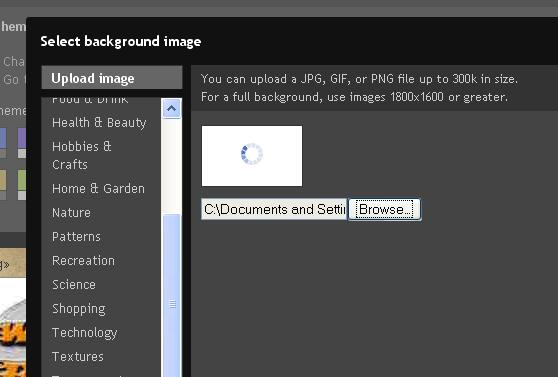

If you're happy with your upload (or any image you find in the list) click "done". Once your back in the template designer, you can change the alignment of your image, or select tile or don't tile, or have the image stationery, or scroll with the page.

Because the images are often not as long as a full page, when you select the tiling method you'll see the demarcation line between the bottom of the image and the top were it begins again. The same will happen horizontally if your images aren't large enough. If you can upload a "seamless tile" image for your background, you'll avoid this.

For now, I'll leave my background image this way so we can move on with the design.
The next step is to decide on the layout you want for your main post, widgets and footer. Click the layout tab and you'll see three options to the right - "Body Layout", "Footer Layout" and "Adjust Width". We'll start with Body Layout.

Looking at the sample layouts you'll note the one that currently on the blog (that one came with the Simple template we selected), and options for changing to a "no sidebar" layout to different layouts for multiple sidebars. On the whole, I prefer a simple layout with one main panel for posting and a right or left sidebar. For this blog, I'll select the fifth option with a center pane for posts and a single sidebar on either side.

When you select one of the layouts, you'll notice that this will show in your blog preview pane with your widgets set into the various spots. You can arrange these widgets when you are back in the blogger design page.

Now, select your footer choices. Click the footer layout tab and choose one of the footer options (single, double or triple footer where you can place gadgets like text or images or whatever else you can get with a gadget).

Next, select the "Adjust width" option. Here you can select the width of your post template area, and the width of the sidebars.Play with those adjustments until you like the layout. Now we're ready to move on to the Advanced Tab.
When you select Advanced you'll see a list of options where you can make changes to your blog design, like the page text, and backgrounds of various sections, you can create "tabs" for your "pages", adjust the text and text colours. Ready?
Okay first section is the page text, but I have a tendency to start with "Backgrounds" because once I've selected background colours for areas, then it's easier to decide what colour text works best. So let's ignore the Page Text for the moment and click on backgrounds. You have three choices - outer background (this is where we uploaded our image, so if you have an image, you'll want to leave that alone). If you didn't set a background image, you select a solid colour background here - white, blue, black - pretty much any colour your heart desires. Only select this if you don't have a background image, or if you have chosen a transparent background image, or if you selected a colour these set and want to change it.

The main background in this template is set to white, but I've decided to set this to transparent. Not so much because I like it, but I want to show you how to get a transparent background if that's what you want. This works best for fairly plain backgrounds and very simple background images - not so good with the background I've chosen. To get it, select "Main Background" and in the little coloured box next to the current colour choice (white/fffff) select the small arrow and you have the ability to decide on exactly the colour you want with the colour editor, or you can select transparent from the bottom of the colour editor.

Now that I've decided on the background colour (or no colour), I'll go back up to the Page Text and set that. You can choose your font (this is for the main text of the blog), the size, whether it's all bold or all italics, and you can also select the colour. Find something you like and set it. Move on to the Links tab and set your link colours for the link, the visited link and the colour you when you hover over a link.
By now you should be growing familiar with these settings. Along with the ability to choose your exact colour, you can also choose from the list of suggested colours below each option. So go ahead and set your blog title text and colours.
Now we move on to the Tabs Text. The "tabs" are part of the "pages" function on blogger. These tabs appear as a menu, either under your header, or in your sidebar. Depending on the colours you choose, this menu can resemble a simple menu from a website. Select your font and font size, and select the text and text colour. Then move down to the Tabs Background. Here you can decide what colour the menu "buttons" are, and what colour they are when you hover over them.
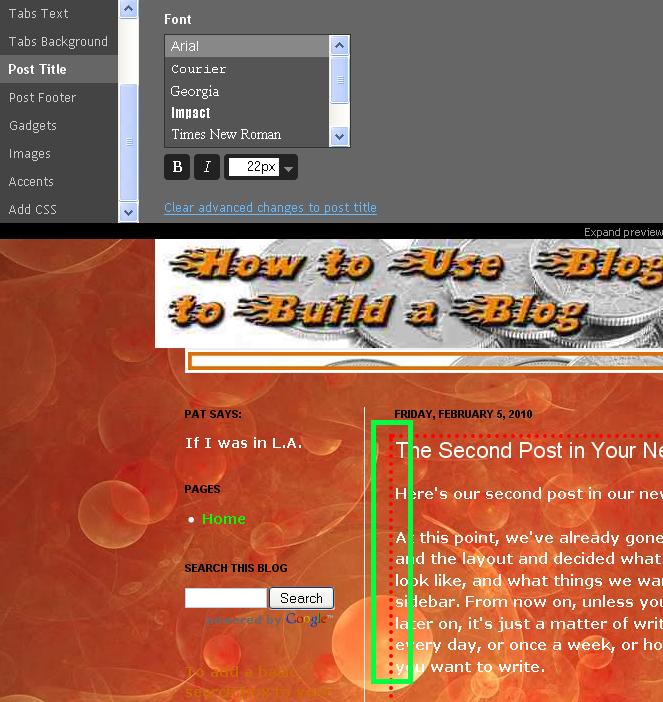
You may have noticed as we click through the advanced options that there are dotted lines around some sections. These dotted lines outline the area you are selecting options and colours for. Click on the "Post Title" tab and you'll see that the outline only goes around the posting section - because what we are setting options for here is the post title - the font and the font size. Complete the choices for your Post title and post footer sections and then click on the Gadgets tab.
You'll notice all the gadgets these options include will be surrounded with the dotted lines. You can select the title colour for the gadgets.
Almost finished with the layouts - for images, unless you really want some sort of colour in the background and as a border, you can select transparent as the background and border colours, the same way as we chose a transparent background above. Otherwise, set the background and border colours to your taste, as well as the colour used for the image captions.
The last thing we'll do is set the accent colors - the accents are those thin narrow lines that separate your sidebar areas from your post area. You can set these to one of the colours in your blog, or you can make them transparent if you prefer a clean look.
And, unless you are comfortable with CSS changes, for the moment we'll leave the very last section alone. That's where you can your own CSS styles to make your style changes to the CSS.
At this point, you are basically done with your design. You can go back and change anything you like before you apply this design to your blog.

If you're ready, click "apply to blog" in upper right corner of the template designer. In a few seconds you'll see a short notice at the top of the page that your changes have been applied to your blog. Now click "back to blogger" at the upper right.
Anyone who has used an image in their header will probably need to replace the header image because most often the size will be a little different. You upload your new header image the same way you did with the old templates - click the edit link on the header gadget to remove the old image and upload your new one.
Now you've converted your blog to the "blogger in draft" Template Designer templates, but it sure doesn't look like the "Simple Template" we began with - it's entirely your own!
Here's the old blog converted using the Blogger Template Designer (you can visit the page to see it action here on blogger):

Any questions? Post a comment with your question and I'll do my best to answer it.


